GPU Tutorial
CPU basics
A modern server multicore processor can perform roughly 4 trillion calculations per second. Meanwhile network/disk storage can provide roughly 1 million values per second - 5000x slower. To address this, a server has random-access memory (RAM) that can deliver data 100x faster than network/disk. Data is still loaded from network/disk, but hopefully just once and then programs reuse data cached in memory.
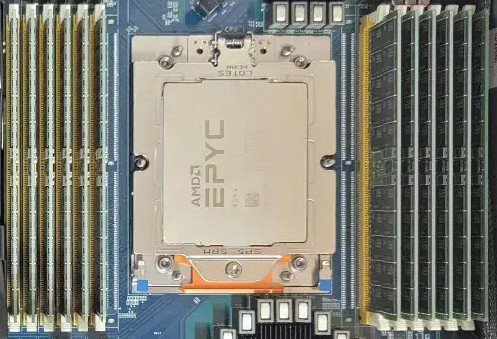
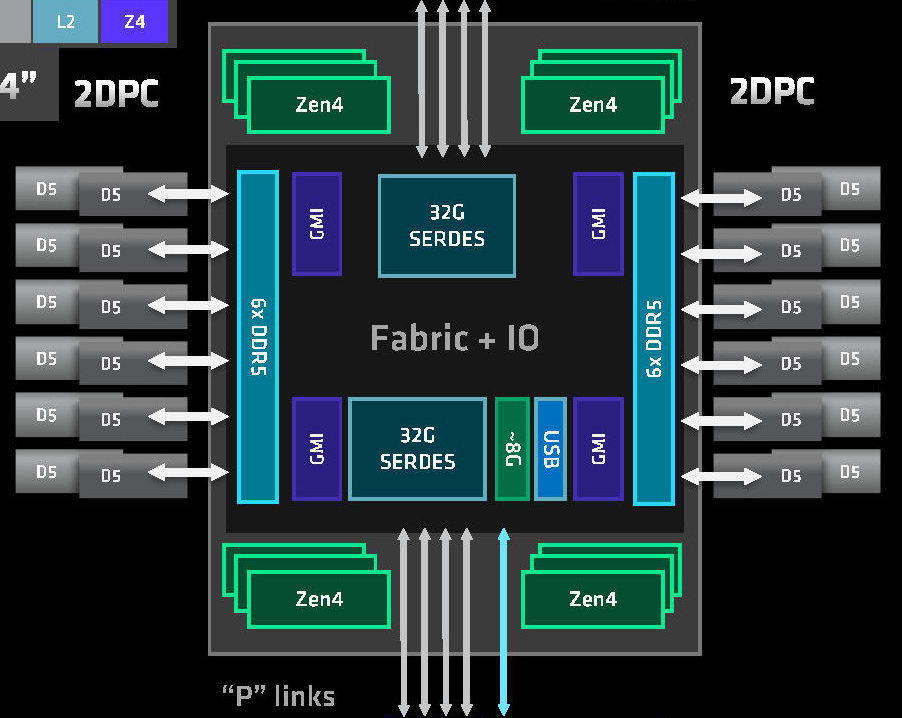
To maximise memory speed, it must be tightly-coupled to the processor and managed by it. Any data transfer to/from memory is directed and performed by the processor, so is initiated with a deliberate instruction to the processor. This includes your files in disk storage, and applies even if you are working in a high-level language like R:
library(Seurat)
library(SeuratData)

# deliberate action:
LoadData("pbmcsca")
...
# load-file instruction to processor:
data <- load(file = "<R-LIBRARY>/pbmcsca/data/pbmcsca.rda")
GPU
Introduction
The graphics-processing unit is just another device, in concept. It has a specialised processor, and like any other processor it has its own tightly-coupled memory. It is just much more powerful than most other devices.
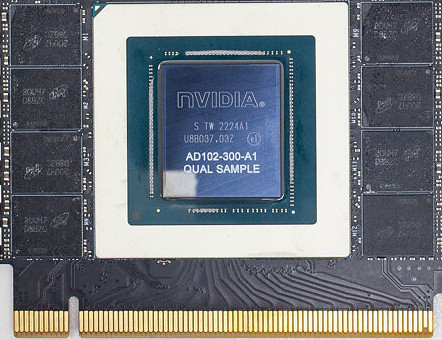
data link with CPU processor
It has its own memory for the same reason as CPU - to reduce bottleneck of constantly transferring data over a data link. GPU memory is roughly 100x faster than the data link to CPU memory.
GPU execution model
When you run a program that runs calculations on the GPU, strictly speaking it is running in the CPU. It sends data and commands to the GPU driver also running in CPU, and the driver "drives" the GPU device by sending data and commands to it.
This may seem clumsy, but remember only the CPU can initiate data transfers to/from the GPU, so your main program must run in the CPU.
Slurm scheduling
If you are not familiar with using a Slurm cluster, then first read our Slurm documentation and submit some test CPU jobs.
Request a GPU
For pure CPU jobs, if you do not specify a number of CPUs or memory GB then we default to giving a small quantity of each. We can do this because we can divide a multicore processor into individual CPUs, so we have plenty of CPUs and memory.
In contrast, the GPU devices we have cannot be divided, so the smallest unit size we can allocate is one entire GPU card. As we have very few cards then all allocations must be deliberate, to avoid giving users a GPU without their knowledge. So you must specify the number of GPU devices you want, even when you have requested a GPU partition:
request with batch job
#!/bin/bash
#SBATCH --partition=gpu
#SBATCH --gpus=1
...
request with interactive job
$ srun --partition=gpu --gpus=1 ...You can confirm your job has been given a GPU with scontrol:
$ scontrol show job $JOBID
   ...
   TresPerJob=gres:gpu:1
GPU utilisation
It is important that you verify your workload is actually using the GPU, particularly when trying a new tool.
Because of the work required to transfer data between GPU and CPU, some tools default to CPU-only even when they advertise GPU support.
E.g. CellBender requires you specify its --cuda argument.
Or perhaps the GPU libraries are not loaded correctly, so your tool cannot use GPU anyway.
nvidia-smi
A certain way to see GPU being used is with the live monitor program nvidia-smi.
To use nvidia-smi we recommend an interactive Slurm job with just 1-2 cards:
aowenson@imm-login1:~$ srun --partition=gpu --gpus=1 --cpus-per-gpu=4 --mem=32G --pty bash -i
aowenson@imm-gn1:~$
aowenson@imm-gn1:~$ tmux new -s train  # launch a detachable tmux terminal for my GPU program
aowenson@imm-gn1:~$ python train.py  # start running my GPU program
aowenson@imm-gn1:~$ # Type Ctrl+b, d - this detaches the tmux terminal
aowenson@imm-gn1:~$ nvidia-smi  # view GPU utilisation
...
|-----------------------------------------+----------------------+----------------------+
| GPU  Name                 Persistence-M | Bus-Id        Disp.A | Volatile Uncorr. ECC |
| Fan  Temp   Perf          Pwr:Usage/Cap |         Memory-Usage | GPU-Util  Compute M. |
|                                         |                      |               MIG M. |
|=========================================+======================+======================|
|   0  NVIDIA TITAN RTX               Off | 00000000:22:00.0 Off |                  N/A |
| 40%   47C    P2             276W / 280W |   6367MiB / 24576MiB |    100%      Default |
|                                         |                      |                  N/A |
+-----------------------------------------+----------------------+----------------------+
...
aowenson@imm-gn1:~$ tmux a -t train  # reopen my tmux terminal where my GPU program is still running
nvidia-smi shows my GPU is being used at near-100% (GPU-Util),
confirming my program is running on GPU.
If program was instead running on CPUs then nvidia-smi will show 0% utilisation,
or not list any GPUs at all.
If requesting 4 cards, please only submit as a batch job. This is because the job will almost-certainly wait in queue for several hours, which is not appropriate for an interactive job. So be sure your multi-GPU function works by testing on 2 cards.
Check job logs
Most tools should print a warning or error if, when trying to use a GPU, they cannot access one. Possible reasons are: (i) you forgot to request a GPU, or (ii) the GPU libraries did not load correctly. So check the job output logs for GPU problems. For example:
- Python Torch will report:
RuntimeError: Found no NVIDIA driver on your system. - CellBender will report
Trying to use CUDA, but CUDA is not available
Minimal Bioinformatics example
Performing any useful work with a GPU will involve 3 separate data transfers:
- Load file from disk/network -> CPU memory
- Transfer data from CPU memory -> GPU memory
- Fetch result from GPU memory -> CPU memory
Each transfer is managed by the CPU, regardless of direction or device, because each involves the memory that is managed by CPU. Here is an example in Python, where we can use Numba and/or CuPy to provide a nice interface to CUDA operations:
# Load a FASTA file into CPU memory
seq_host = read_fasta_ACGT("/databank/10x-rangers/refdata-gex-GRCh38-2024-A/genome.fa")

# Ask CPU to copy sequence into GPU
seq_gpu = cuda.to_device(seq_host)

# Create array in GPU for storing 4x counts
counts_gpu = cuda.to_device(np.zeros(4, np.uint64))

# Calculate in GPU
count_bases(seq_gpu, seq_host.size, counts_gpu)

# Ask CPU to get counts from GPU
counts_host = counts_gpu.copy_to_host()
Full Cuda example in Python
# To run in CCB:
#   module load python-cbrg
#   module load cuda/12.2
#   python ./cuda-example.py

import sys, time, os, subprocess, hashlib
import numpy as np

from numba import cuda, uint8, uint64
# Numba = just-in-time compiler.
# Write your arbitrary function in CUDA-aware Python,
# and Numba can convert to Nvidia PTX code

import cupy
# CuPy = NumPy for CUDA
# Array-based interface to CUDA

fa_filepath = "/databank/igenomes/Bos_taurus/Ensembl/ARS-UCD1.3/Sequence/cds/Bos_taurus.ARS-UCD1.3.cds.all.fa"

def read_fasta_ACGT(path: str) -> np.ndarray:
    # Read bytes, drop headers/newlines, keep only A/C/G/T (case-insensitive).
    data = bytearray()
    with open(path, "rb") as f:
        for line in f:
            if line.startswith(b">"):
                continue
            for b in line:
                if b in (65,67,71,84,97,99,103,116):  # A C G T a c g t
                    # normalize to uppercase
                    data.append(b & ~0x20)  # ASCII trick: clear lowercase bit
    # Map ASCII to 0..3 (A/C/G/T) or 255 for ignore (shouldn't happen after filter)
    lut = np.full(256, 255, dtype=np.uint8)
    lut[ord('A')] = 0; lut[ord('C')] = 1; lut[ord('G')] = 2; lut[ord('T')] = 3
    arr = np.frombuffer(bytes(data), dtype=np.uint8)
    return lut[arr]  # compact sequence: values 0..3

@cuda.jit
def count_bases_kernel(seq, n, counts4):
    # counts4[0]=A, [1]=C, [2]=G, [3]=T
    i = cuda.grid(1)
    stride = cuda.gridsize(1)

    a = uint64(0); c = uint64(0); g = uint64(0); t = uint64(0)
    for idx in range(i, n, stride):
        v = seq[idx]
        if v == 0:
            a += 1
        elif v == 1:
            c += 1
        elif v == 2:
            g += 1
        elif v == 3:
            t += 1

    if a: cuda.atomic.add(counts4, 0, a)
    if c: cuda.atomic.add(counts4, 1, c)
    if g: cuda.atomic.add(counts4, 2, g)
    if t: cuda.atomic.add(counts4, 3, t)

def count_bases(seq_gpu, n, counts_gpu):
    threads = 256
    blocks = min(65535, (n + threads - 1) // threads)
    count_bases_kernel[blocks, threads](seq_gpu, n, counts_gpu)
    cuda.synchronize()

def compute_user_signature_cupy(user_id):
    # To prove this user ran on a GPU,
    # do an arbitrary GPU calculation on their username.
    x = hashlib.sha256(user_id.encode("utf-8")).digest()

    # create a GPU array view of the bytes, convert to float32
    x_gpu = cupy.frombuffer(x, dtype=cupy.uint8).astype(cupy.float32)   # shape (32,)
    x_gpu = (x_gpu / 255.0) - 0.5  # normalize to roughly [-0.5, 0.5]

    # cheap but GPU-resident operations
    transformed = cupy.sin(x_gpu * 12.345) + cupy.tanh(x_gpu * 3.21)
    weights = cupy.arange(1, x_gpu.size + 1, dtype=cupy.float32)

    # weighted sum (all on GPU)
    result = cupy.sum(transformed * weights)

    # return md5 hash of the GPU result to avoid sharing raw float values
    result_float = float(result.item())
    result_bytes = f"{result_float:.12f}".encode("utf-8")
    sig = hashlib.md5(result_bytes).hexdigest()[:8]
    return sig

def main():
    # Load a FASTA file into CPU memory
    print("Loading data ...")
    seq_host = read_fasta_ACGT(fa_filepath)

    pid = os.getpid()
    job = os.getenv('SLURM_JOB_ID')
    sig = compute_user_signature_cupy(subprocess.check_output(["id"], text=True).strip())
    print(f"Run signature: PID={pid}, job={job}, user={sig}")

    print("Starting GPU work")

    for i in range(2000):
        # Runs at 19 passes per second, so 2000 ~= 2 minutes.
        # Enough time to run "nvidia-smi" during.

        # Request CPU to copy sequence into GPU
        seq_gpu = cuda.to_device(seq_host)

        # Create array in GPU for storing 4x counts
        counts_gpu = cuda.to_device(np.zeros(4, np.uint64))
        # - alternative with CuPy:
        #counts_gpu = cupy.zeros(4, dtype=cupy.uint64)

        # Calculate in GPU
        count_bases(seq_gpu, seq_host.size, counts_gpu)

        # Request CPU to get counts from GPU
        counts_host = counts_gpu.copy_to_host()

    # Print statistics
    A, C, G, T = counts_host.tolist()
    total = int(A + C + G + T)
    gc = (100.0 * (G + C) / total) if total else 0.0
    print(f"A: {A}\nC: {C}\nG: {G}\nT: {T}\nGC%: {gc}")

    print(f"Run signature: PID={pid}, job={job}, user={sig}")

if __name__ == "__main__":
    main()
Evaluation
To ensure that you now have a basic understanding of using GPUs in a Slurm cluster,
we have prepared a evaluation.
Once you pass this, we will remove your GPU restrictions, becoming able to use the modern GPUs in the gpu-ada queue.
Simply run the above Bioinformatics example in an interactive Slurm job, and run nvidia-smi inside the job while the Bioinformatics is running.
Copy the output of both nvidia-smi and the Bioinformatics code into this form.
Responsible use
GPUs are a popular but limited resource, so please take extra care to ensure you use them responsibly and efficiently.
1) Be sure your program is using the GPU resources.
Test in an interactive job, monitoring with nvidia-smi program.
We have plans for batch jobs to also report GPU utilisation, but for now only nvidia-smi can.
2) Request an appropriate amount of GPU resources.
Assess how much GPU memory your work needs - our gpu-turing GPUs have half memory of gpu-ada and usually less busy.