R
Overview
As well as the standard R versions that you'd normally expect, we've additionally preinstalled hundreds of additional packages for you to use.
These are available via the R-cbrg module, and full lists available here (click version): 4.3 | 4.4
Basic usage
If you just want to get up and running with our curated set of commonly used bioinformatics packages,
you can do so with a single command: module load R-cbrg.
If you just want to use R and have no need for any other command line tools,
you can use our preconfigured RStudio server at https://rstudio.molbiol.ox.ac.uk.
Requesting additional packages
If you need to use a package which isn't already installed, please contact us via help@imm.ox.ac.uk before attempting to install a local copy. In many cases we can easily add it to the central installation.
Image plotting problems
If you have problems with errors relating to X11 when making graphical plots,
this is most likely due to JADE not having an X-server installed.
To work around this problem, please add the following to your R scripts: options(bitmapType='cairo')
Installing locally
R packages installed from CRAN or BioConductor are considered trusted, as these repositories have strict review processes for new uploads. But if you are installing a package from GitHub, then ensure you specify a version - ideally a tag, but if owners are not tagging versions then specify a commit hash. Disable installing/upgrading dependencies, so that you can similarly install these in a controlled way.
library(devtools)
install_github('GreenleafLab/ArchR', ref='v1.0.3', upgrade='never', dependencies=F)
# ERROR: dependencies ‘chromVAR’, ... are not available for package ‘ArchR’
install_github('GreenleafLab/chromVAR', ref='0.3', upgrade='never', dependencies=F)
...
Custom library paths
By default, in addition to the packages preinstalled into R-cbrg, both R and RStudio will also look in your home folder for additional packages:
print(.libPaths())
[1] "/ceph/home/a/aowenson/R/x86_64-pc-linux-gnu-library/4.4"
[2] "/ceph/package/u22/R-cbrg/current/4.4.2"
[3] "/ceph/package/u22/R-cbrg/current/4.4.1"
[4] "/ceph/package/u22/R-base/4.4.1/lib/R/library"
R starts looking in the first path [1], and keeps searching until package is found or no more paths.
You can modify .libPaths().
You cannot change the bottom path [4] because that is for R, but you can remove [1]-[3], or insert more paths.
As an example, add a path to .libPaths() inside our RStudio server to resolve a limitation:
our RStudio cannot see new folders of packages until it has been restarted, and we try to avoid restarts.
So to use recent new packages installed with R version 4.4.2:
# prepend new folder of some new packages:
.libPaths(c("/project/sysadmin/aowenson/R/x86_64-pc-linux-gnu-library/4.4.2", .libPaths()))
print(.libPaths())
[1] "/project/sysadmin/aowenson/R/x86_64-pc-linux-gnu-library/4.4.2"
[2] "/ceph/home/a/aowenson/R/x86_64-pc-linux-gnu-library/4.4"
[3] "/ceph/package/u22/R-cbrg/current/4.4.2"
[4] "/ceph/package/u22/R-cbrg/current/4.4.1"
[5] "/ceph/package/u22/R-base/4.4.1/lib/R/library"
Persist changes
If you want changes to .libPaths to be persistent,
affecting any new R sessions,
then put them in file ~/.Rprofile:
my_lib_path < "/ceph/home/a/aowenson/R-my-pkgs/4.4.2"
.libPaths(c(my_lib_path))
Sys.setenv("R_LIBS_USER" = my_lib_path)  # necessary for RStudio
For more robust package management, enabling reproducible environments, use the renv package:
https://rstudio.github.io/renv
Version control
R language and packages are separated into two modules:
-
R-basecontains fixed, unchanging installations of the base language -
R-cbrgcontains separate package repositories for each version of R
This is for safety: packages can be updated without unexpected changes to the language.
If you only load R-cbrg, then it auto-loads our default version of R:
$ module load R-cbrg
Loading R-cbrg/current
  Loading requirement: R-base/4.3.0
$ module list
Currently Loaded Modulefiles:
 1) R-base/default   2) R-cbrg/current
$ R --version
R version 4.3.0 (2023-04-21)
To use a different version of R than default, or ensure default changes don't break your work,
then load R-base first with version specified:
$ module load R-base/4.4.1
$ module load R-cbrg
$ module list
Currently Loaded Modulefiles:
 1) R-base/4.4.1   2) R-cbrg/current
$ R --version
R version 4.4.1 (2024-06-14)
R-cbrg/current is the rolling 'head' where packages are continually installed and updated.
To enable reproducibility, every 3 months an immutable snapshot of packages is taken:
$ module avail R-cbrg
R-cbrg/202307  R-cbrg/202310  R-cbrg/202401  R-cbrg/202404  R-cbrg/202407  R-cbrg/current
Note that newer versions of R will have fewer snapshots. To use a snapshot instead of current, just specify a version:
$ module load R-cbrg/202407
Loading R-cbrg/202407
  Loading requirement: R-base/4.3.0
To use a snapshot without interacting with module command e.g. from within RStudio,
then use the R function .libPaths function to modify search locations:
.libPaths("/package/R-cbrg/202407/4.3.0")
print(find.package("Seurat"))
[1] "/ceph/package/u22/R-cbrg/202407/4.3.0/Seurat"
If you put this in your ~/.Rprofile file then it will affect every R script you run.
To restrict effect to specific scripts, then instead modify .libPaths at start of your script.
RStudio become unresponsive
If your RStudio session becomes unresponsive, first check your email inbox as our memory watchdog may have terminated your R process. If your work was parallel, then the watchdog may have only killed some processes not all, leaving some alive stuck waiting that locks your session. In this case, consider switching to a container on main cluster for access to more memory. If you did not receive an automated email from our memory watchdog (check your spam), and you cannot think of another cause, then consider contacting us to investigate at help@imm.ox.ac.uk.
If you simply want to reset your session to resume work, then trigger terminating all your processes on our RStudio / Jupyter Notebook server:
- SSH into your CCB account
- run command
touch ~/.kill_my_R_session - wait up to 2 minutes for that file to disappear
An unfortunate side effect is your RStudio session state can become corrupted. State is responsible for: remembering open files, execution progress, and custom RStudio settings. If you see error code 502, your state is corrupt. This has become more common since we upgraded RStudio in 2024. So if despite running the above commands to reset, your RStudio is still unresponsive, then you must delete your session state:
touch ~/.kill_my_R_session  # to be sure RStudio not running (remember to wait)
rm -r ~/.local/share/rstudio
RStudio advanced
Interface to Python
Some R packages interface with Python packages, for example Seurat interfaces with Python NumPy.
This is easy to enable with our module system, but tricky within RStudio.
Use our custom R function ccb_load_python to configure your R environment to see our Python 3.11 and packages:
#/package/R-base/ccb_custom/ccb_r_python.R
ccb_load_python()
Sys.which("macs2")
macs2
"/package/python-cbrg/current/3.11.14/bin/macs2"If you encounter errors indicating your R code could not locate Python despite above, e.g.:
Error loading Python module magic
Tools for managing Python virtual environments are not installed.

Install pip with:
$ sudo apt-get install python3-pip
... then append this to the Python setup:
library(reticulate)
use_python(python_bin_dir, required=T)
Interface to Conda
Useful tips:
PIP cache full
Creating Conda environments can fill your default Python PIP cache, so just move it (in R) e.g.:
Sys.setenv(PIP_CACHE_DIR = "/tmp/aowenson/pip-cache")
Sys.setenv(PIP_WHEEL_DIR = "/tmp/aowenson/pip-wheel")
...
Use Conda in custom location
Conda environments can be too big for your home quota, so follow these instructions to move into a project. First in Bash, tell Conda of your custom env folder:
conda env list
conda config --show envs_dirs
conda config --add envs_dirs /project/sysadmin/aowenson/MyCondaEnvs
conda config --show envs_dirs
conda env list
Then ensure R can see your Conda, e.g. with reticulate:
...
Sys.setenv(RETICULATE_CONDA = "/project/sysadmin/aowenson/Miniforge3/bin/conda")
library(reticulate)
...
Container
If you find our popular RStudio server has insufficient free memory for your large analysis, you can launch an instance of RStudio on the main cluster using our prepared container file.
The first step is creating a Slurm job script that contains this at minimum:
#!/bin/bash
#SBATCH --job-name rstudio
apptainer run --writable-tmpfs /package/containers/rstudio-server/rserver-2025.sif
To let it access your project data or our packages folder, you must add bindings to command.
Once you have submitted your job to the queue,
the next step is to create an SSH tunnel to RStudio.
To help ease this process, we have prepared a script to create this tunnel,
provided your job name is exactly rstudio:
-
Windows: https://datashare.molbiol.ox.ac.uk/public/files/connect-to-wn-rstudio.bat
-
Mac: https://datashare.molbiol.ox.ac.uk/public/files/connect-to-wn-rstudio.sh
Follow the instructions this script prints to connect your web browser to RStudio. At the RStudio login screen, username is your CCB username, but password is not your CCB password, instead is a randomly-generated password printed in your Slurm job log file.
Session migration
If you wish to migrate a live RStudio session out of our RStudio server to a different instance,
and cannot afford to re-run the analysis,
then you need to transfer the session via a workspace file.
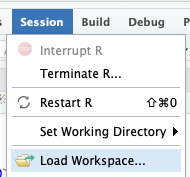
Session -> Save Workspace, switch to other RStudio, then Session -> Load Workspace.
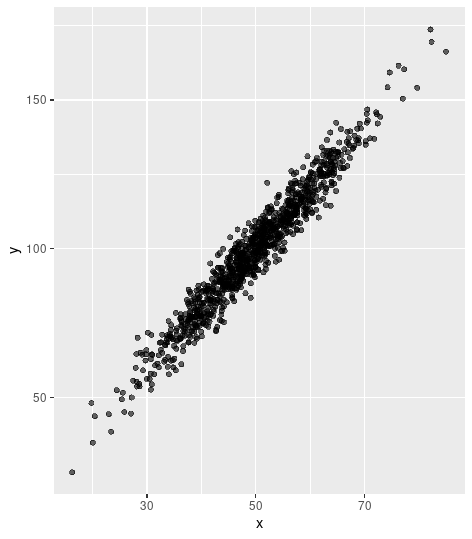
- generate random X-Y data
- plot the X-Y data
library(tidyverse)
library(ggplot2)

n = 1000
set.seed(42)
x = rnorm(n, mean = 50, sd = 10)
y = 2 * x + rnorm(n, mean = 0, sd = 5))
Save session to file:
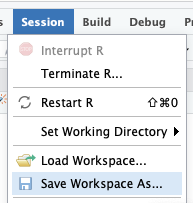
Load session file:
library(ggplot2)  # have to reload libraries

initial_plot <- ggplot(mapping=aes(x=x, y=y)) +
  geom_point(alpha = 0.6)

print(initial_plot)